
Create a Transnetyx Order
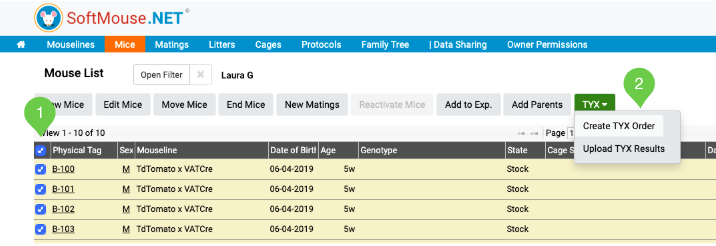
On your Mouse or Litter list follow these steps:
- Select the Mice/Litter you are collecting samples for
You can use the Filter to narrow down your list (e.g. filter by the Tail/Tag date range) - Click the TYX drop down, then the "Create TYX Order" button
- On the Order Page, enter the Transnetyx Well Plate number
- Choose which Sample ID method you want from the top right drop down (Physical Tag, Alt. ID, Mouse SID), then select the check box of the mice in the list
Note: you can easily reorder the list by simply dragging and dropping the rows to get the records in the right Well Location order (A1, B1, C1, etc.) - Beside the Well Location at the top left of the page, click AutoFill, you'll notice that the Well Location column of the mouse list will be filled in automatically
Note: if you prefer to fill in your Well Plate order in stages (e.g. by Strain or at different times), follow these steps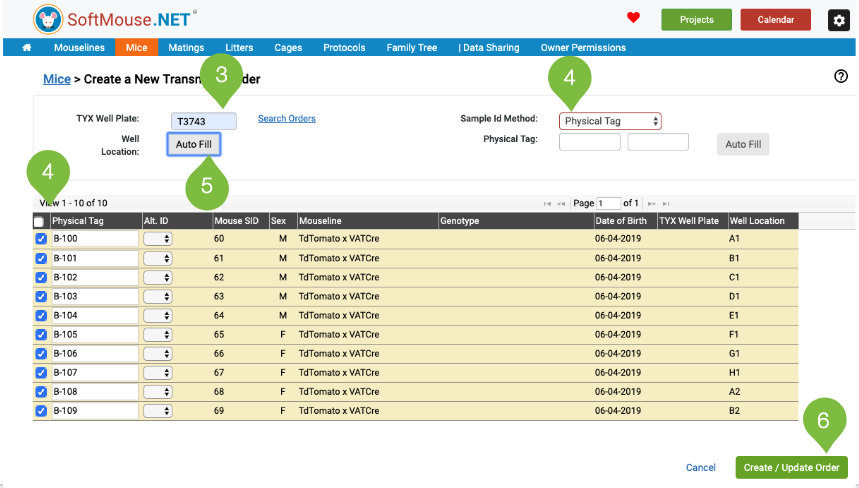
If you have the Transnetyx Intergration turned ON you can automatically send your order to Transnetyx following these steps:
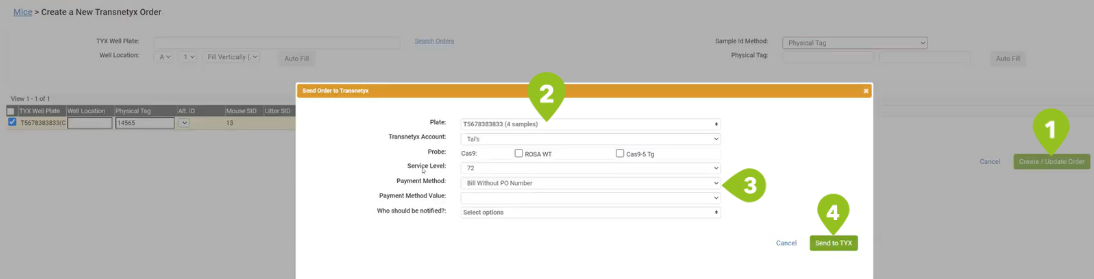
- Click Create/Update Order button at the bottom right of the page - this will trigger a pop-up asking if you would like to send this order to Transnetyx. Click OK.
- A Send Order to Transnetyx pop-up will appear. On this pop-up, you can select the Plates, the Transnetyx Account, and Probes that you wish to send. Kindly note the Probe must match exactly in both SoftMouse.NET and Transnetyx's Strain respectively.
- Next, select the Payment Method and Payment Method Value used for the Transnetyx Order Services. For all billing inquiries, please contact Transnetyx Support at: [email protected]
- Optionally notify your team of the Order's creation, and then click 'Send to TYX'
All set! Your order has been sent to Transnetyx. If you have set the integration to automatically retrieve the results, they will be uploaded as soon as they are ready from Transnetyx.
If you have the Transnetyx Integration turned OFF you can manually send your order to Transnetyx following these steps:
- A system generated pop up will appear so you can save the order to your computer (.xls format)
- Finally, connect to your Transnetyx account and create the order (Click Start Order > Genotyping > Upload your Template > Fill in the remainder of the form as usual to finalize the order in Transnetyx)
_Start_Order.jpg)
- Click Create/Update Order button at the bottom right of the page - this will trigger a pop-up asking if you would like to send this order to Transnetyx. Click OK.
Done!
When your results are ready, you can then proceed to Upload your Genotype Results.
Note: All mentions of third party brand names or product descriptions are made strictly to illustrate compatibility. All brand names and logos are registered trademarks of their respective owners.
If you have any further questions, please contact us with your inquiry.