
How to Associate Sample Content
When generating digital samples in SoftMouse.NET, you have the ability to make associations between your samples attributes to ensure your collections are accurate.
Here are the steps:
- In the Module menu at the top right of the screen, click Colony
- Click the Associations icon in the blue menu bar
- Click Samples Association
- Use the checkboxes to create the associations between Samples, Anatomic Regions and Portions
- Click the Arrow to move them to the Associations box
- Click Save
- Repeat until all your associations have been entered
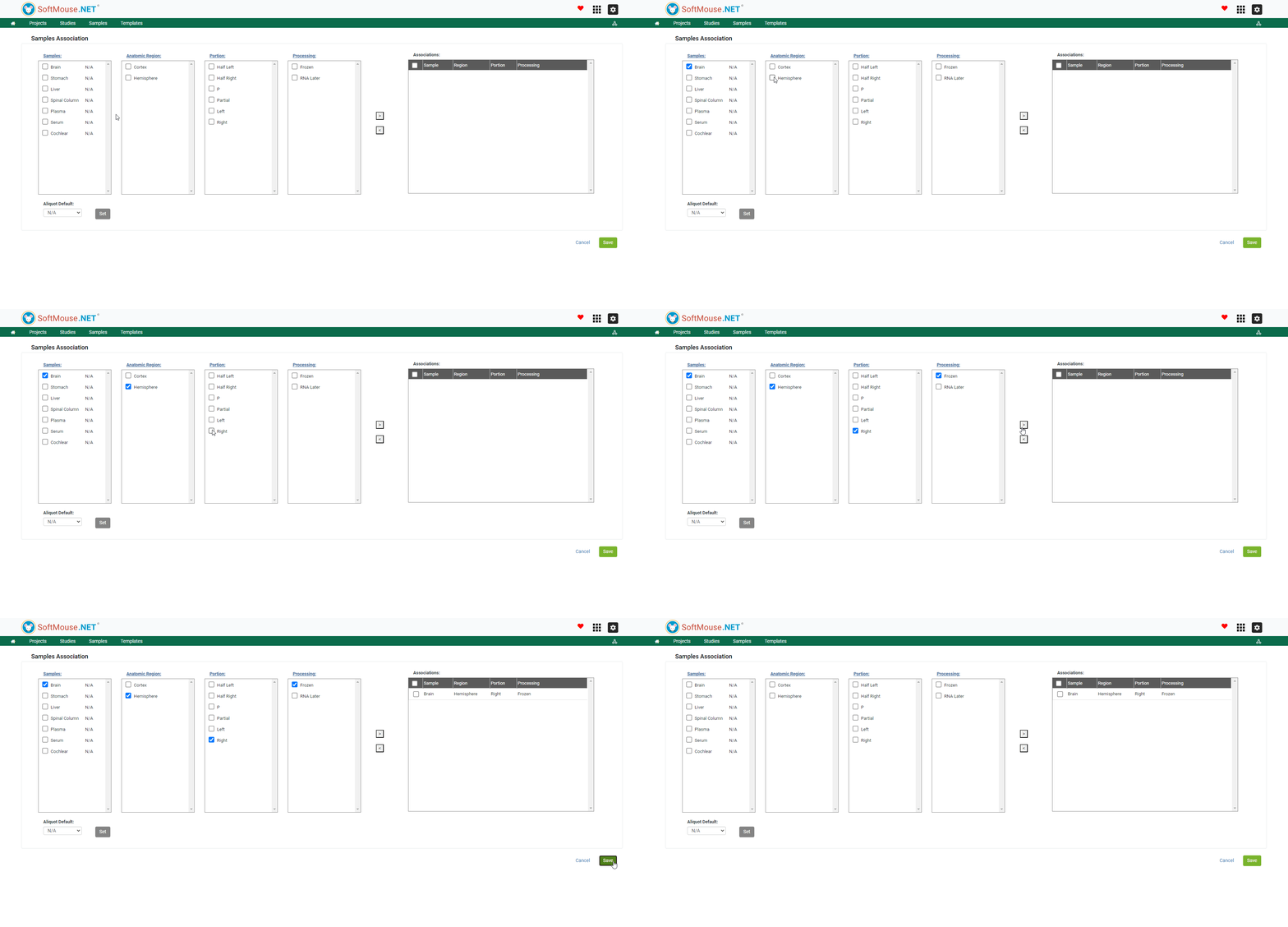
Note: you can click the hyperlinks above the boxes to add in or modify the names of the content, e.g. click Samples to add additional Samples to the list or change the name of an existing sample if you prefer a different nomenclature.
You can also add in abbreviations to the names, this way if you have small labels for your collection tubes, the abbreviated name will be printed on the tube instead of the full name, savign you some precious real estate on the tube label!
If you have any further questions, please contact us with your inquiry.