
How to Confirm an Order
Once an Order has been created, you can confirm the order to indicate that the order has been placed with the vendor.
When you confirm an Order, the State of the Order changes from "Pending" to "Ordered." There are two ways in SoftMouse.NET to confirm an Order:
Kindly note that you can only confirm an order while the order is pending. Once an order is pre-received or received, the system assumes that the order has been confirmed as the facility will have received the order or is being prepared to receive the order.
Here are the steps to confirm an Order from the Order List:
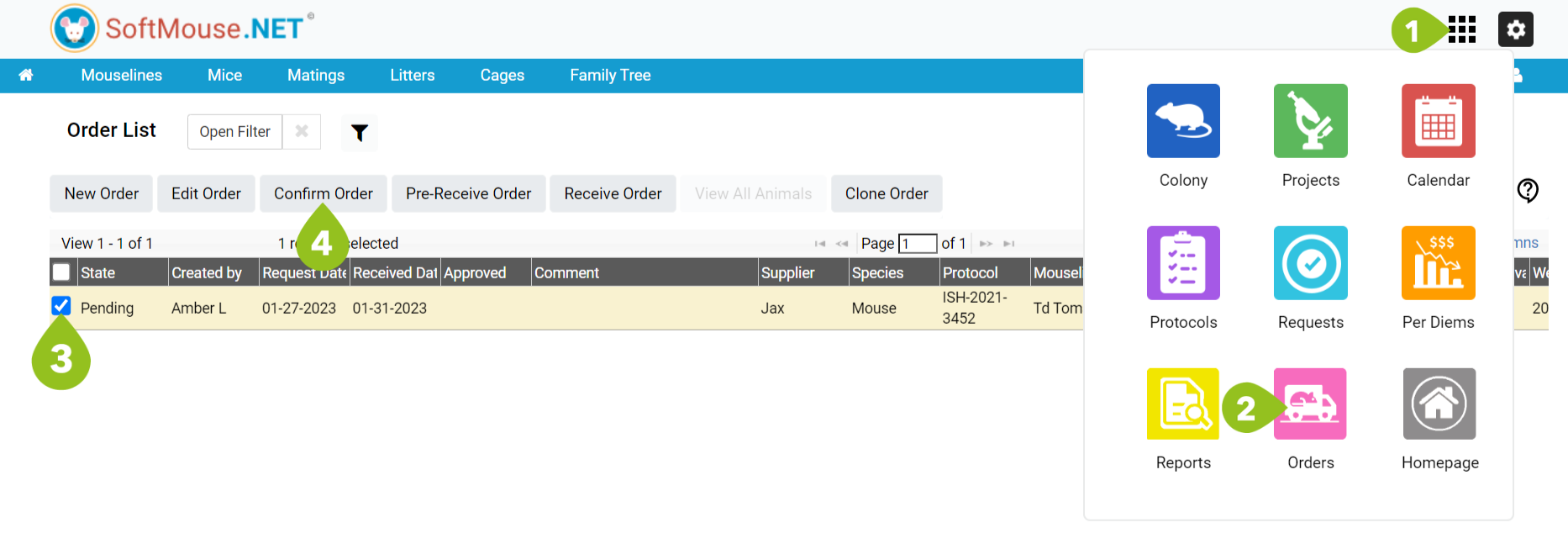
- Click the Module Menu at the top right of the screen
- Click the pink Orders icon -- This takes you to the Order List Page
- On the Order List page, select the order you wish to Confirm.
- Click the Confirm Order button icon on the top menu of the screen -- This triggers a Popup window to confirm the date the order was placed.
- In the Track Ordered Date pop-up window, under the Ordered Date field, select the date that the order was placed. You can also notify the appropriate team members that this order has been confirmed.
- Click Submit.
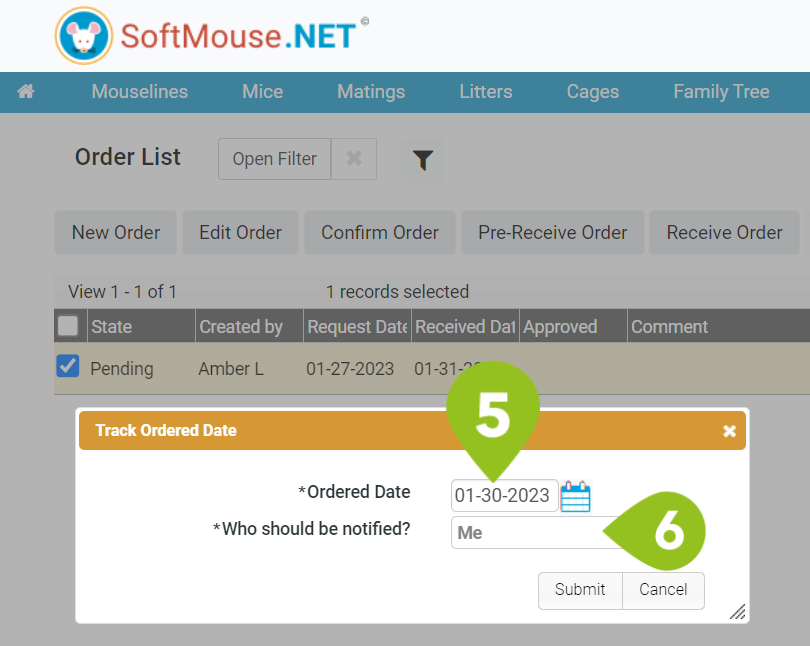
Once you click submit, the order's state will change from Pending to Ordered, and is now ready for you to receive your shipment!
Here are the steps to confirm an order from the Edit Order Page:
- Click the Module Menu at the top right of the screen
- Click the pink Orders icon -- This takes you to the Order List Page
- On the Order List page, select the order you wish to Confirm, and click the Edit Order Button or click the Order SID hyperlink. -- Either option takes you to the Edit Order Page
- On the Edit Order Page, in the Order Detail Window, select the date the order was confirmed in the Ordered Date field. You can also notify the appropriate team members that this order has been confirmed.
- Click "Save + Stay" or "Save + Back" -- This triggers a Popup window to confirm the date the order was placed.
- In the Pop-Up Window, select "Ok" to confirm the Order.
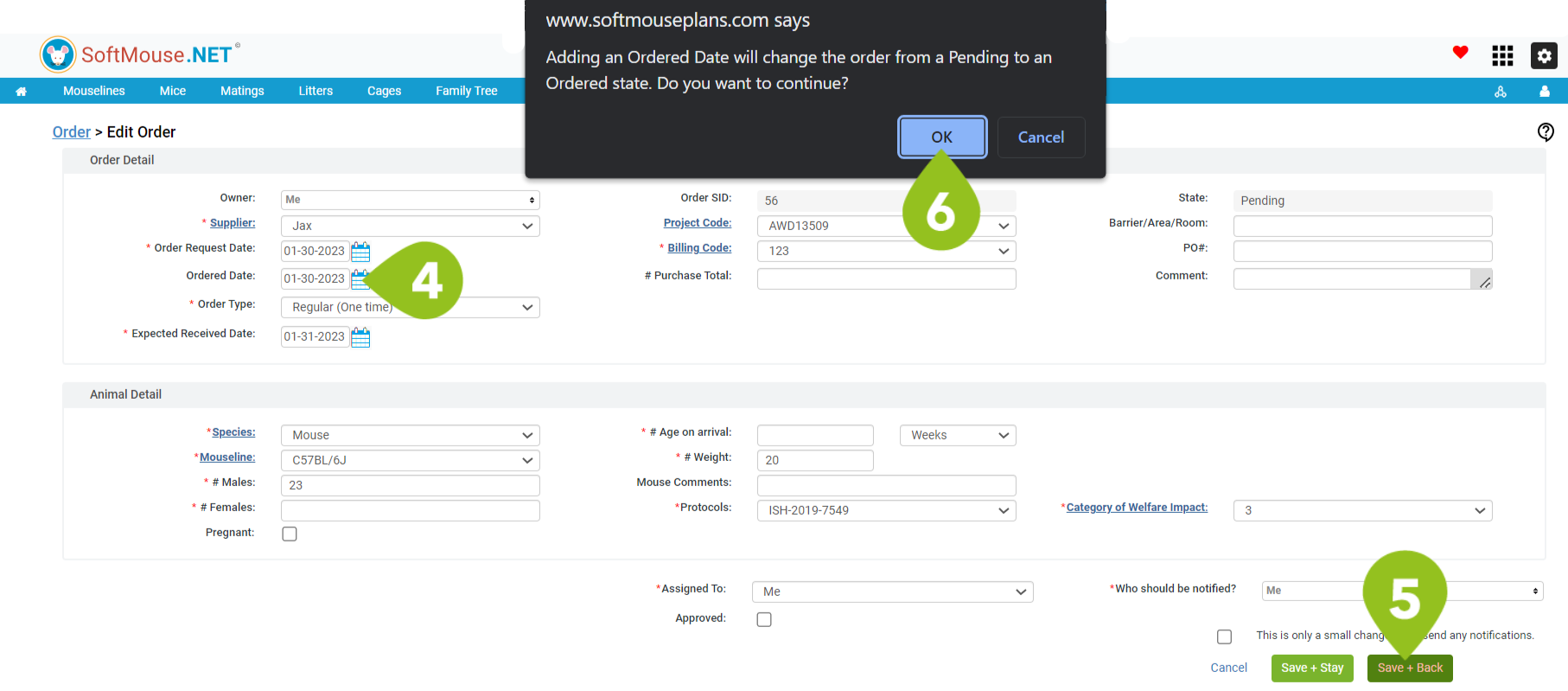
Once you click submit, the order state will change from Pending to Ordered, and is now ready for you to receive your shipment!
If you have any further questions, please contact us with your inquiry.