
How to Create a Task in a Study?
Here are the steps to follow:
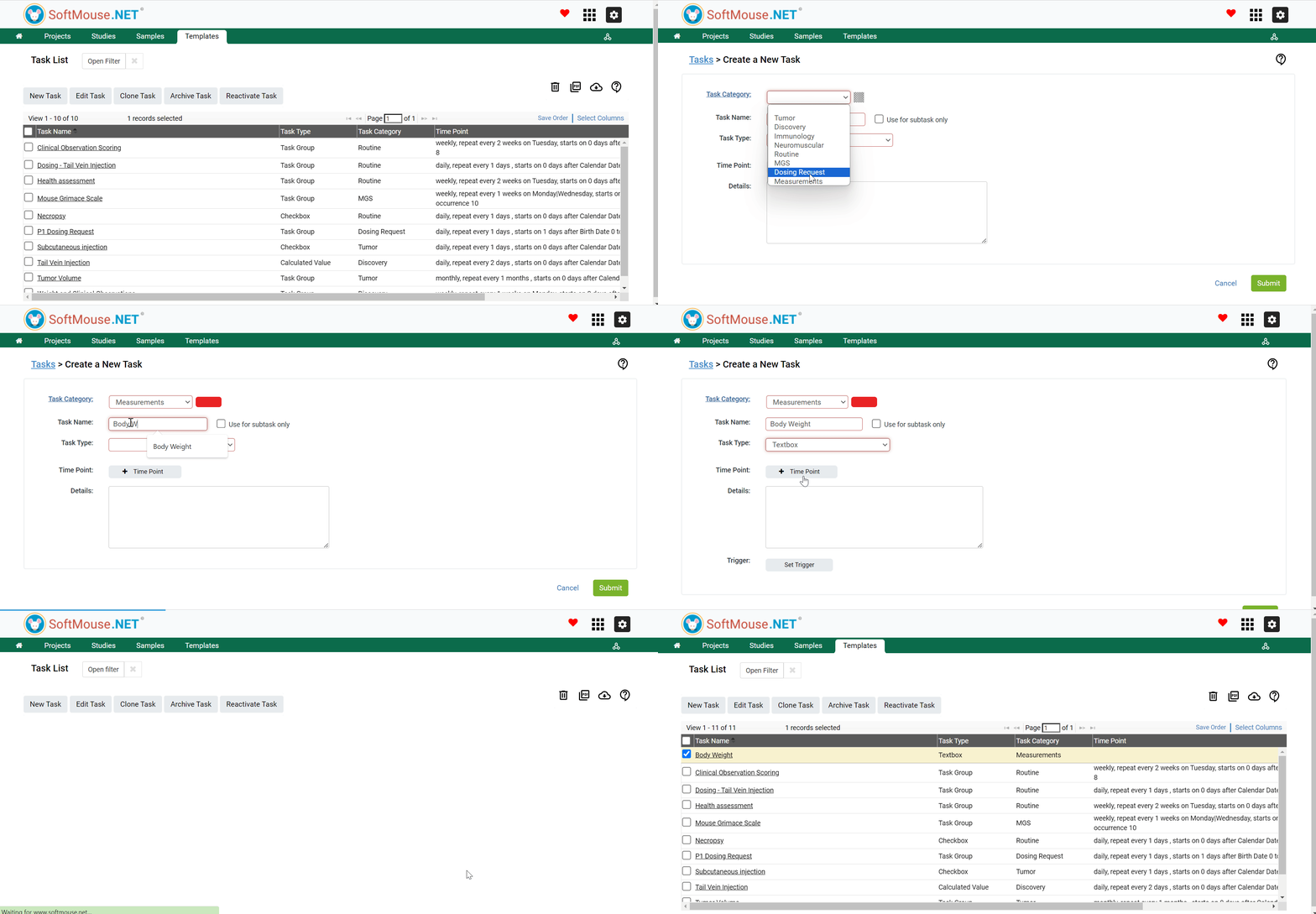
- In the Study Manager (Green tile labeled Projects), click the Templates tab in the green toolbar
- Click Tasks in the Templates submenu
- On the Task List page, click New Task
- In the Task Category field, select the respective Category in the drop down list e.g. Body Weight, Physical Appearance, Injection etc
- If the Task Category field Drop down menu is empty, Add the required values first
- In the Task name field, enter your preferred name e.g. Body Weight Taking, Body Weight Measurement etc.
- In the Task Type field, select the desired type in the drop down list based on how the data will be collected:
- Text box: information will be entered e.g. body eight, tumor size etc.
- Check box: the task is done or not done e.g. drug injection
- Calculated Value: a value will be automatically calculated based on an entered formula e.g. drug volume based on body eight and drug dosage
- Custom Dropdown: a value will be selected from a customized dropdown list e.g. assign a score from 0 to 5 based on physical activity - Click Submit
All done!
Following the aforementioned steps, a Task template will be created and will show on your Task List.
If you have any further questions, please contact us with your inquiry.