
How to Enter Study Data?
Here are the steps to follow:
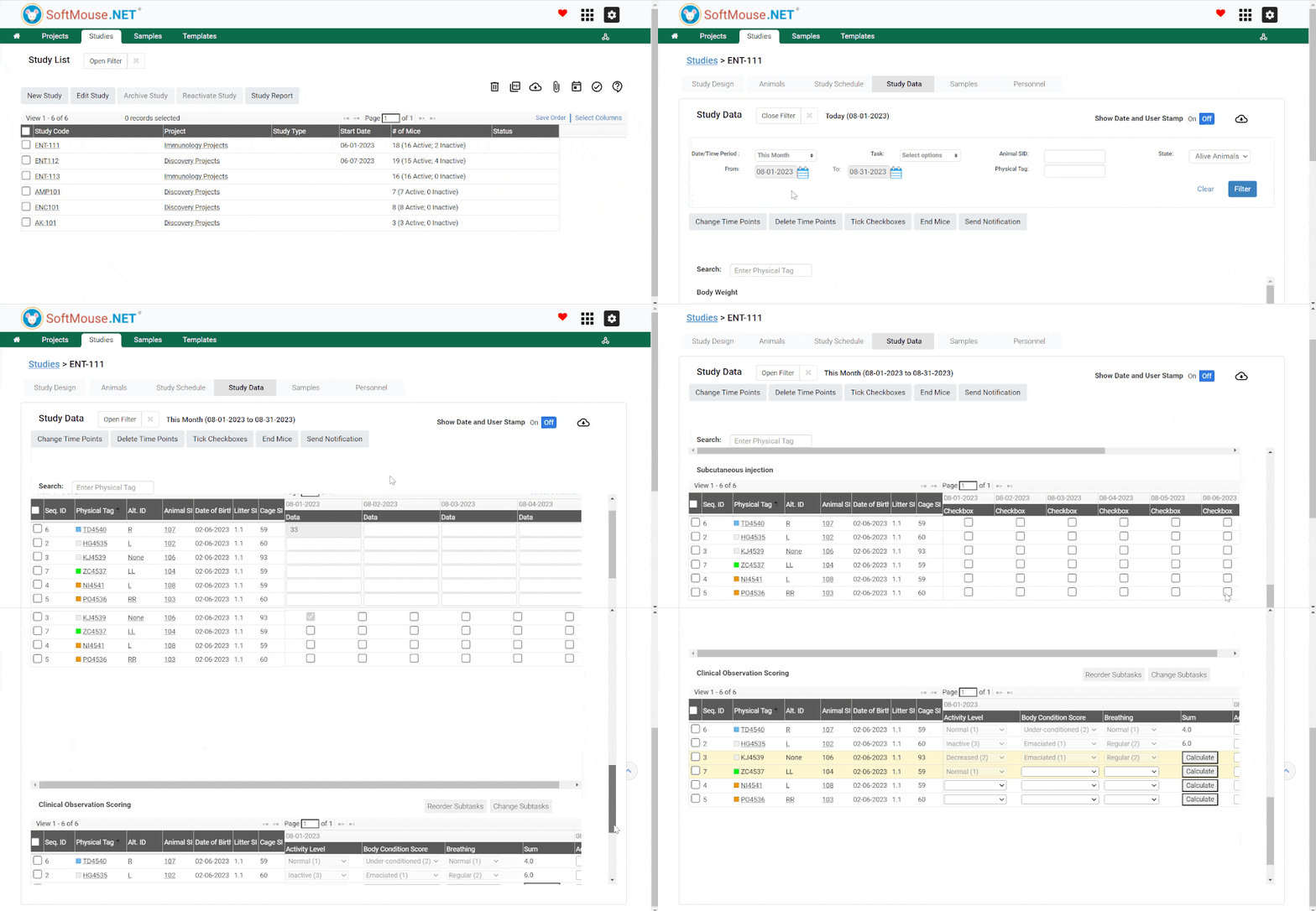
- On your Study list page, click the name of the Study of interest
- Click Study Data Tab
Note that the Filter defaults to showing Tasks scheduled for the same day “Today” for Alive Animals. If you intend to enter Today’s data only, go to step 7 - Click Open Filter
- In the Date / Time period field select the period you plan to enter the data for in the drop-down list e.g. This week, This month, etc.
- In the State field, select the Animals’ state of interest i.e. Alive, Ended, All
- Click Filter
- In the Table titled with the Task name of interest, click the field in the respective Time point to enter data as per the Task Type. Here are the details:
Text box: Enter data and click away from the text box to save the entered data.
Check box: Click the check box to mark the Task as done
Drop-Down List: Select the correct value in the customized drop-down list - Repeat step 7 for the other Tasks and Time points as needed
All done!
Tip! You can correct the entered data in a Text Box Task by double-clicking the locked cell and entering the correct data.
Following the aforementioned steps you will be able to collect Study Data and enter it in the database n real time.
If you have any further questions, please contact us with your inquiry.