
How to Create a Task with Auto Calculated Value
Here are the steps to follow:
- In the Study Manager (Green tile labeled Projects), click the Templates tab in the green toolbar
- Click Tasks in the Templates submenu
- On the Task List page, click New Task
- In the Task Category field, select the respective Category in the drop down list e.g. Body Weight, Physical Appearance, Injection etc
- If the Task Category field Drop down menu is empty, Add the required values first
- In the Task name field, enter your preferred name e.g. Body Weight Measurement etc.
- In the Task Type field, select Calculated Value in the drop down list
- Click Edit Formula
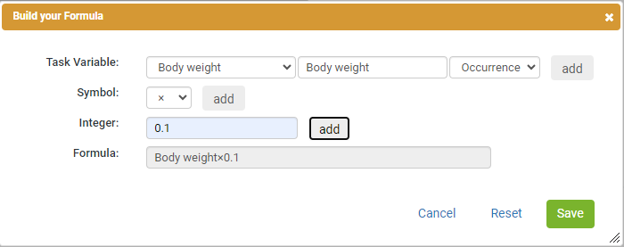
- In the pop up box, enter the formula details based on your requirements
Click Add after selecting each of the formula items - When the formula is complete, click Save
- Click Submit on the Create a New Task page
All done!
Here is an example for reference:
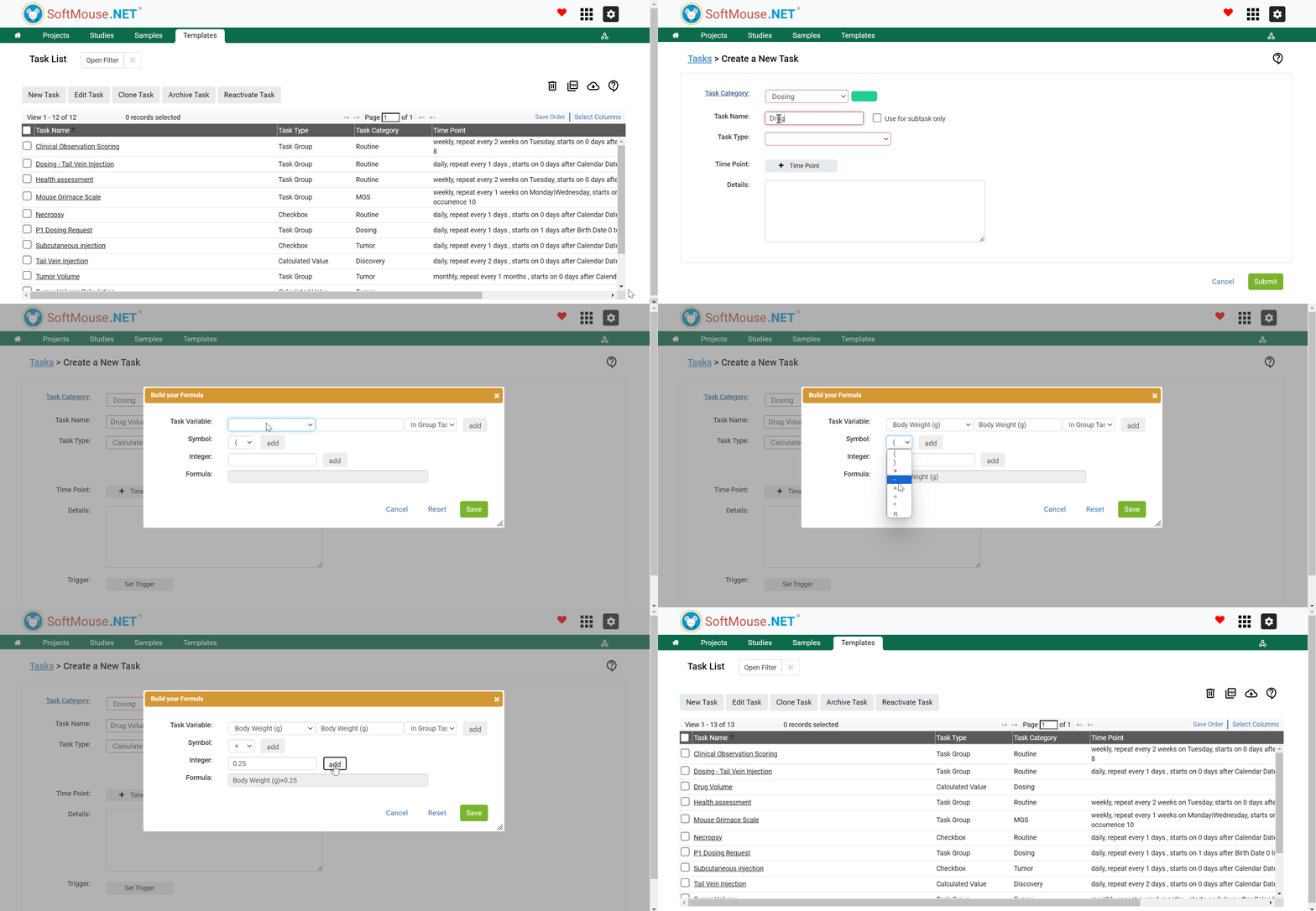
If you have any further questions, please contact us with your inquiry.