
How to Edit a Sample
Follow these steps to edit any sample in your study:
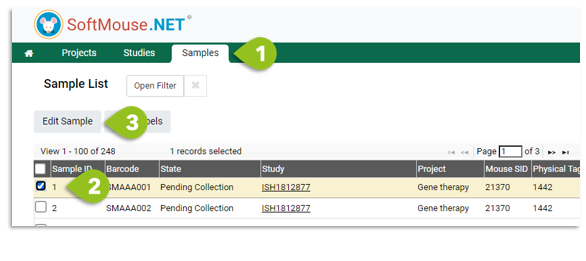
- Select Sample on the top green menu to go to the Sample List
- Select a sample in your list (use the filter to narrow down your list by Study ID or Sample)
- Click on Edit Sample
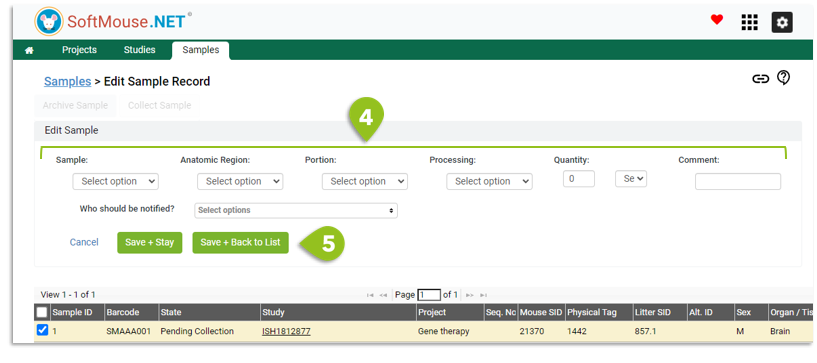
Note: The next sequence of steps is important. You must first perform step 4 before step 5 in order for the change to save. - On the Sample Edit page, first select all checkboxes of the samples you wish to edit.
Then, use the drop downs to select the desired change.
Note: Because the drop downs are interlinked, if you wish to change the Anatomic Region of a sample only, you still need to select the Sample from the sample drop down first in order to ensure the Anatomic Region drop down populates - Click on Save and Stay or Save+Back to List
Done!
If you have any further questions, please contact us with your inquiry.