
How to Mark an Accidentally Collected Sample as Archived
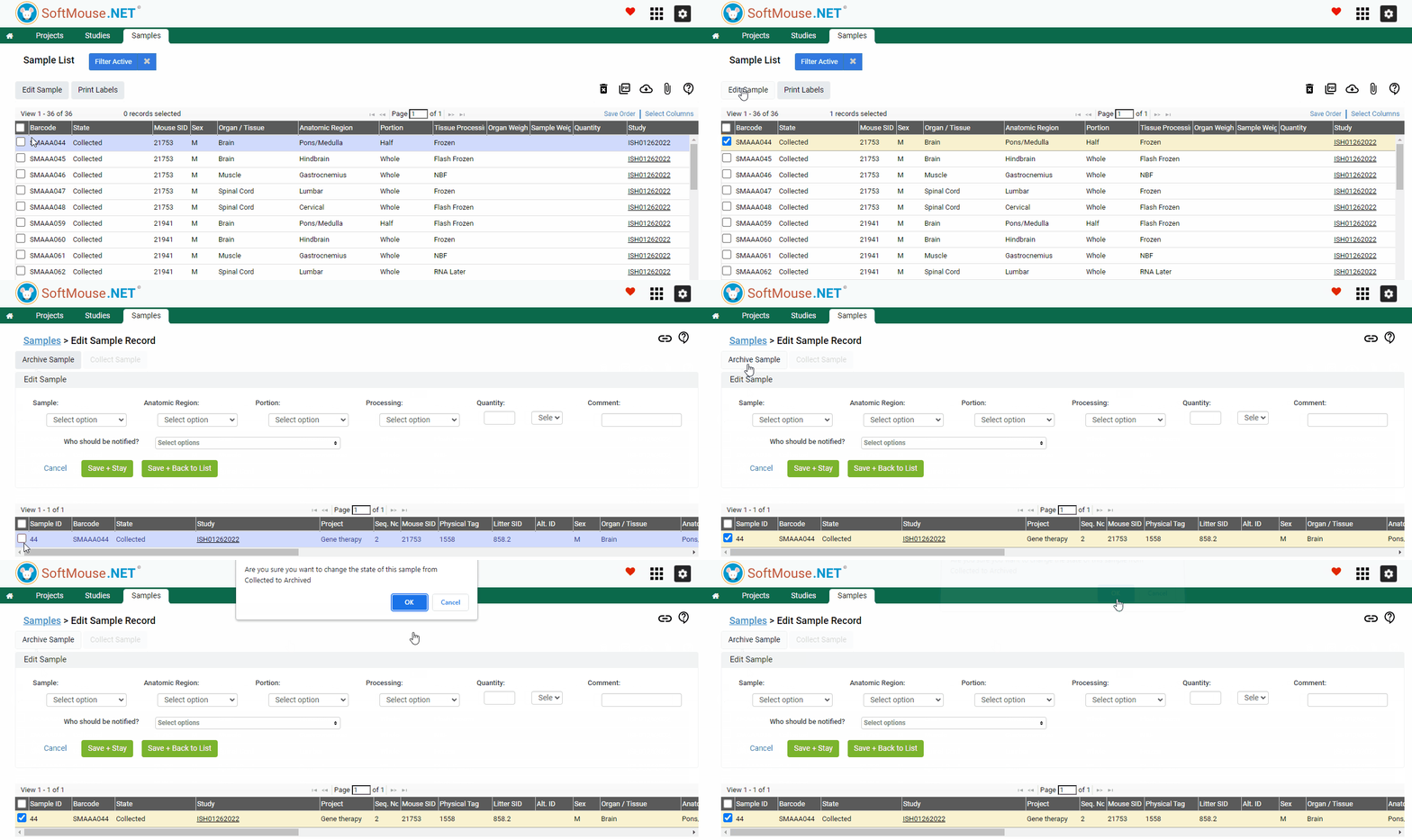
If you accidentally scanned a tube at collection time that instead needed to be archived, you can easily correct this by changing the sample state to Archived.
Here are the steps:
- Go to the Samples menu
- Select the Sample(s) whose state needs to be changed --- use the Filter to narrow down your search, e.g. by Study Code, Sample type, etc.
- Click Edit Samples
- On the Edit Samples page, select the samples
- Click Archive Sample
Done! Now the state of the sample(s) will be changed to Archived.
If you have any further questions, please contact us with your inquiry.