
How to Pre-Receive an Order
After creating or confirming your order, you can then prepare your facility for the order’s arrival up to one month before the expected receival date. Pre-Recieveing your Order allows you to add the animals into your SoftMouse.NET Colony before they have arrived at your facility. This allows you to prepare the cages and print out the Cage Cards in advance.
There are two ways to Pre-Receive an Order:
Kindly note that you can only pre-receive an order when the order state is set to Pending or Ordered. Once an order state is set to received, the system assumes that the facility has received the order and is no longer in need of Pre-Receiving the Order.
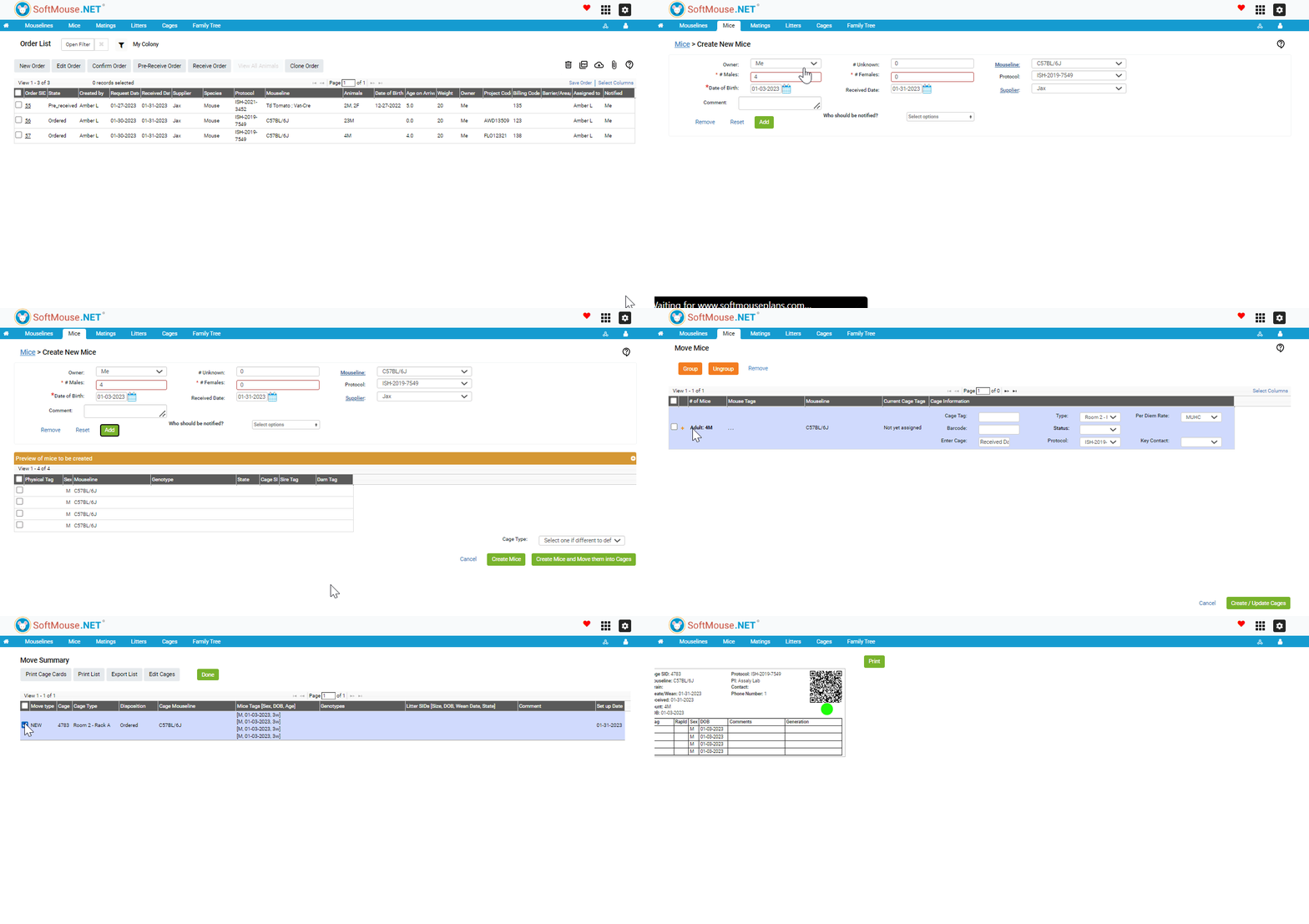
Here are the steps to Pre-Receive an Order from the Order List:
- Click the Module Menu at the top right of the screen
- Click the pink Orders icon -- This takes you to the Order List Page
- On the Order List page, select the order you wish to Pre-Receive.
- Click the Pre-receive button on the top menu of the screen -- This takes you to the Create New Mice page
- The Create New Mice Page will be pre-populated based off of the order details. You can edit the details here as needed. -- Note: when you edit the details from this page, the order details will also be edited.
- When ready to add the animal data to the database, click 'Add' -- This takes you to the Move Mice page
- On the Move Mice page, group your ordered animals as you intend to house them when they arrive at your facility. Once ready, click 'Create/Update Cages'. -- This takes you to the Move Summary page
- On the Move Summary Page, you can print your cage cards in advance, and view your Ordered Animals in your SoftMouse.NET Colony.
Now, The state of the Order will display as "Pre-received." The animals and cages from the Pre-Received Order are then entered into the database under the "Ordered" State.
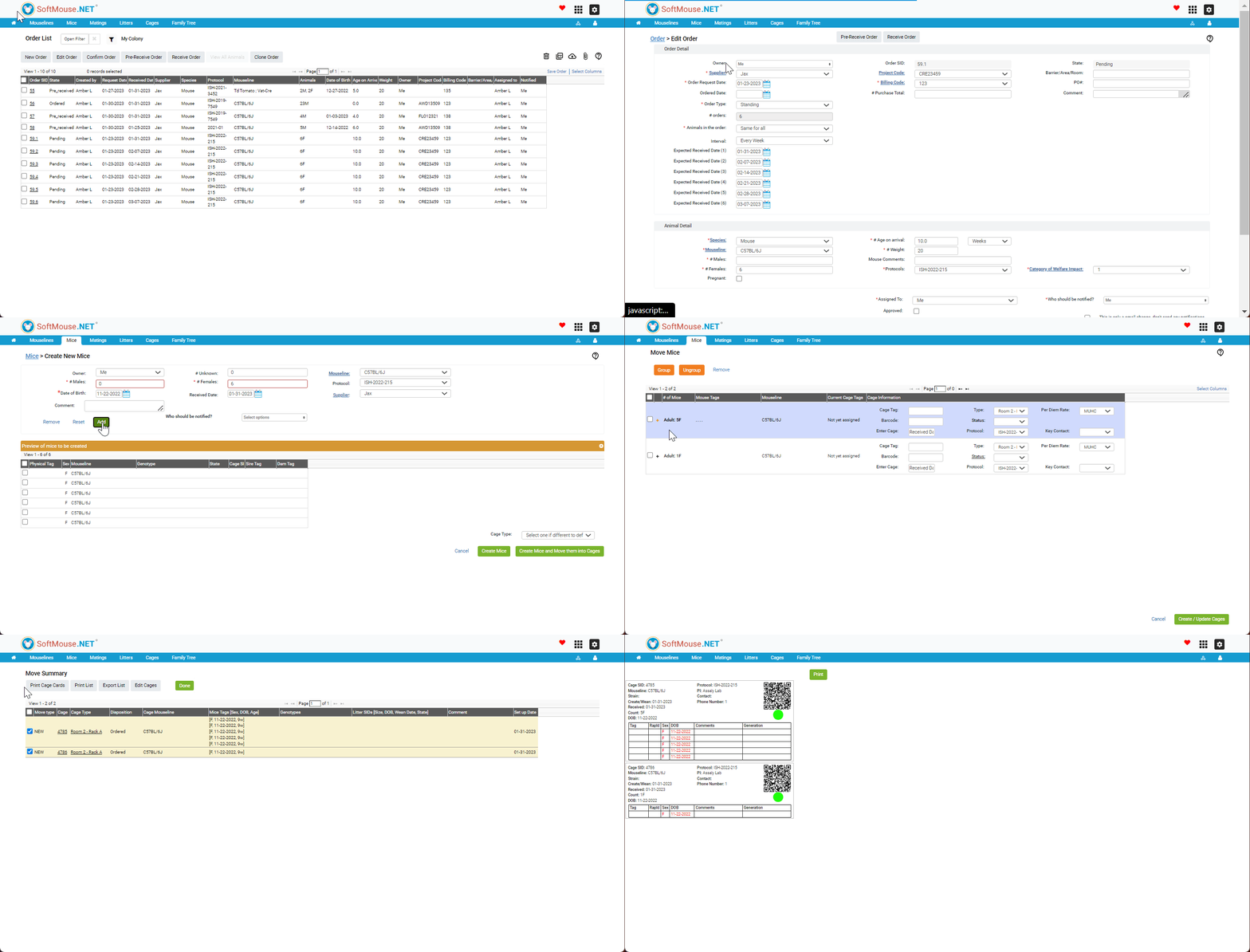
Here are the steps to Pre-Receive an Order from the Edit Order Page:
First, navigate to the Order Module:
- Click the Module Menu at the top right of the screen
- Click the pink Orders icons -- This takes you to the Order List Page
- On the Order List page, select the order you wish to Confirm, and click the Edit Order Button or click the Order SID hyperlink. -- Either option takes you to the Edit Order Page
- On the Edit Order Page, click the Pre-receive button on the top menu of the screen -- This takes you to the Create New Mice page
- The Create New Mice Page will be pre-populated based on the order details. You can edit the details here as needed. -- Note: when you edit the details from this page, the order details will also be edited.
- When you are ready to add the animal data to the database, click 'Add'
- When you have finished adding animals to the database, click "Create Mice and Move them into Cages"-- This takes you to the Move Mice page
- On the Move Mice page, place your ordered animals as you intend to house them when they arrive at your facility. Once ready, click 'Create/Update Cages'. -- This takes you to the Move Summary page
- On the Move Summary Page, you can print your cage cards in advance, and view your Ordered Animals in your SoftMouse.NET Colony.
Now, The state of the Order will display as "Pre-received." The animals and cages from the Pre-Received Order are then entered into the database under the "Ordered" State.
If you have any further questions, please contact us with your inquiry.