
How to Print Labels
When digital samples are created and pending collection, now is the time to print out your tube labels so you can get your collection kit ready for the takedown!
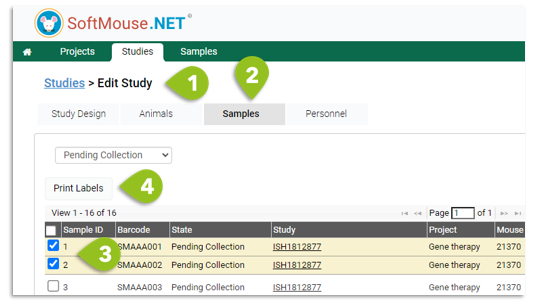
Print Labels from the Study:
- Go to the Study Edit page
- Click the Samples tab --- by default you will see all samples that are pending collection
- Select the sample labels to be printed
- Click Print Labels
- Proceed to select your printer to print out the labels
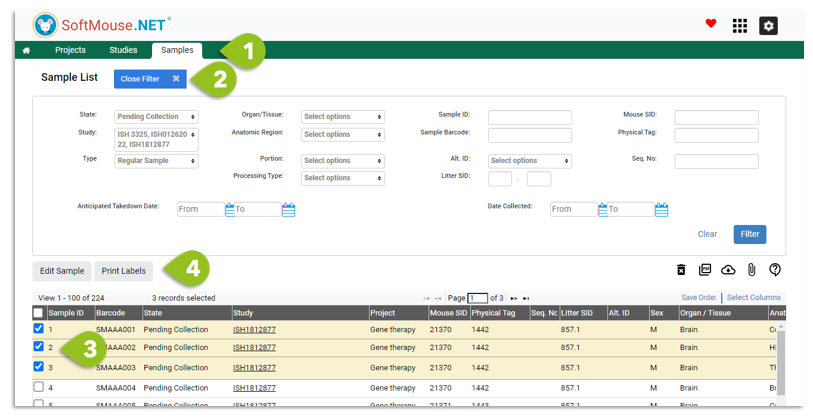
Print Labels from the Samples menu:
- Go to the Samples menu in the green bar
- Open the Filter and use the parameters to narrow down your list of samples, e.g. by Anticipated Takedown Date, Study Code, etc.
- Select the samples to be printed
- Click Print Labels
- Proceed to select your printer to print out the labels
If you have any further questions, please contact us with your inquiry.