
How to grant Access Permissions to your data
NOTE: Your admin will need to allow you to override the default group permissions to use this feature. To share the Override Permissions FAQ with your Admin, click here
You can easily grant permissions to other users in your group to create, edit or view your colony records.
Here are the steps:
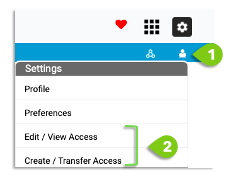
- Click the User Icon on the far right of the page in the blue menu bar
- Click which access you want to grant
- Edit/View access allows users to edit or view your records
- Create/Transfer access allows users to create records and/or transfer ownership
A. In Edit/View Access:
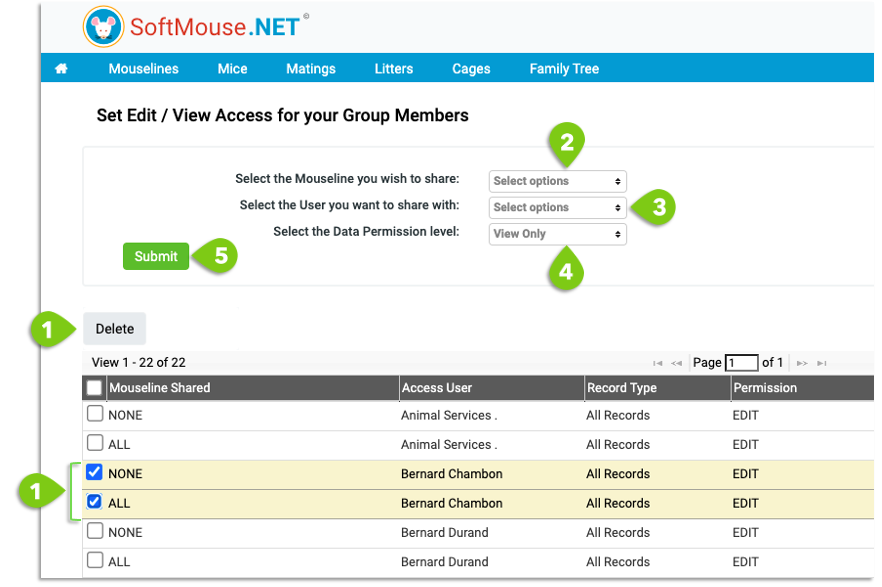
- If the user you want to share records with already has permissions granted that need to be modified, select the checkboxes next to the user in the table and click the grey Delete button
- In the first drop-down list:
- Select Records with no Mouseline to ensure all records that don’t have an associated Mouseline will be editable --- you must click this whether you select All Mouselines or Individual Mouselines
- Select All Mouselines if you want to grant the user access to All Mouselines under the user whose data you wish to share
- Select individual Mouselines if you want to grant the user edit access to specific Mouselines
- In the second drop-down list, select the user you want to share the records with
- In the fourth drop-down list, select:
- Edit if you want the user to modify the records
- View Only if you want the user to view the records
- Click Submit
B. In Create and Transfer Access:
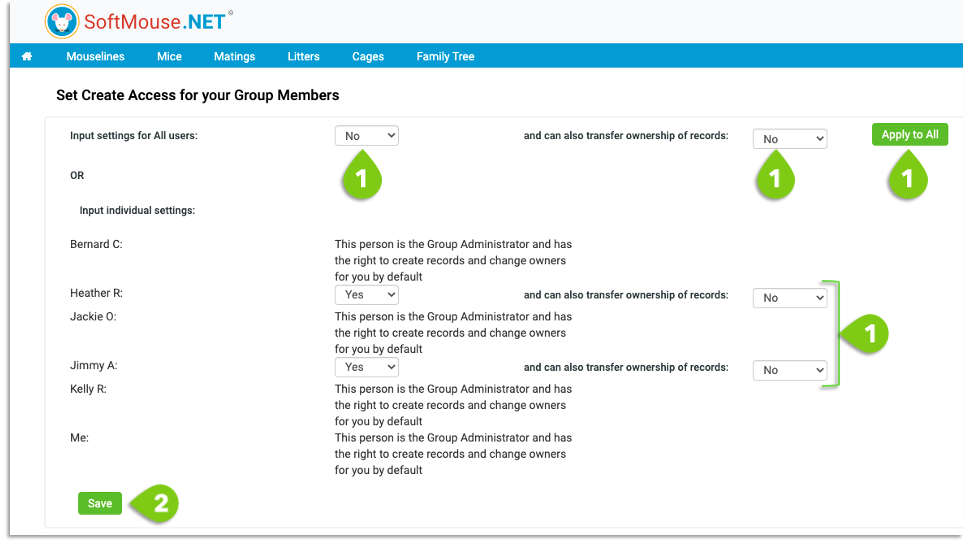
- Input the settings
- If you want all users in the account to be able to create and transfer record, then select Yes in both drop-down list in Input settings for All user and click Apply to All --- leave No in the second drop-down list next to the user name if you only want to grant Create
- If you want selected users in the account, then select Yes in the first and second drop-down list next to the user name(s) to input individual settings --- leave No in the second drop-down list next to the user name if you only want to grant Create Access
- Click the green Save button
Done!
To see this workflow in action, check our Group Accounts and Permissions recorded webinar.
If you have any further questions, please contact us with your inquiry.