
Set up a Centralized Account
As the Lab Administrator of your SoftMouse.NET Account, you can configure your SoftMouse.NET user account so that data is centrally housed and all users contribute to a central/common database of animals.
This setup is typically used in labs:
- that are either just starting off with their mouse colony or
- where there is a central animal tech who does all of the colony maintenance work for all lab members or
- where all lab members share common stocks of mouselines
Here are the steps:
Step 1: Give all users Edit Permission on all data
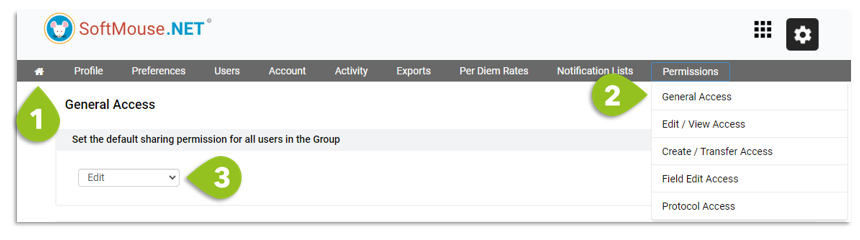
- Click the Home icon
- Open the Permissions Drop down menu and select General Access
- Select Edit in the drop-down list
- Click on Save at the bottom right of the page
Note: to grant view-only permission to all users select View Only in the drop-down list instead of Edit
Step 2: Create your SoftMouse.NET user accounts
As a lab administrator of your SoftMouse.NET account, you can easily create new users as follows:
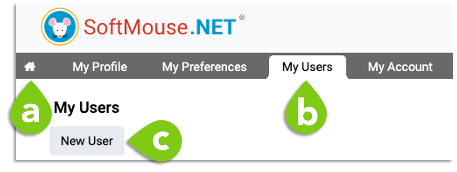
- Click the Home icon (a) to go to the My users (b) section of the account (grey menu) and then click on New User (c)
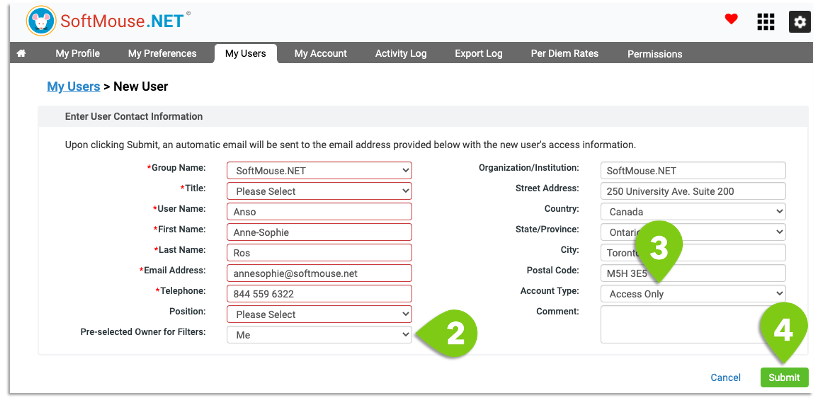
- For Pre-selected owner for filters, select the name of the user who will hold the data as the central account, e.g. if it is you, select Me
- For Account type, select Access only
- Fill in the form and click Submit--- an email with the new account information will be sent to the email address that you inputted into the New User form.

Step 3: Give Create Permission to all users
NOTE: If you create more users later on, you'll need to grant them the Create Permission to ensure all new data gets created under the central account.
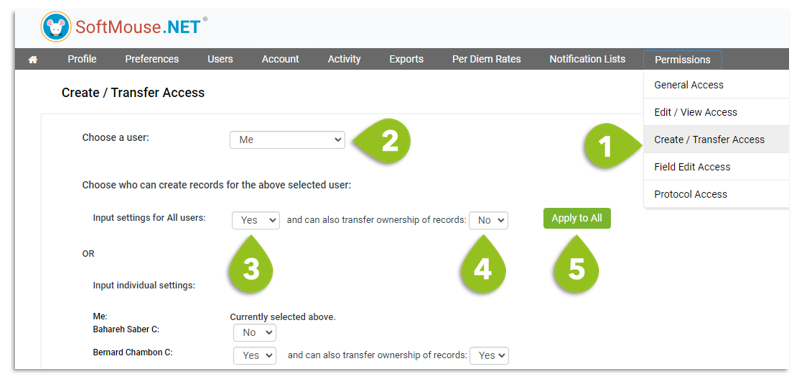
- Go back to the Permissions drop down menu and select Create / Transfer Access
- In the Choose a user drop down, select the name of the user who will hold the data as the central account, e.g. if it is you, select Me
- In the Input settings for All users, select Yes in the first drop down
- Keep the second drop-down list as No (so all data stay centralized)
- Click on Apply to All
- Click on Save at the bottom right of the page
TIP: Once the account is centralized, under My Preferences, each user can select his preferred Page After Login to skip the homepage and get straight to the data!
If you have any further questions, please contact us with your inquiry.