
How To Move Mice Into EXISTING Cages Without Filter
Every cage in the system can be identified by a user-created Cage Tag (or Cage Barcode) or by an automatically generated Sequential Cage I.D. (SID). The system allows for multiple cages to have the same Cage Tag or Cage Barcode but not the same Cage SID. For example, different users can have the same Cage Tag (e.g. Cage Tag 2) who house their mice in different rooms.
If you don't know the exact Cage Tag or the Sequential Cage I.D. of the cage where the mice will be moved, please click here.
To move mice into an EXISTING Cage without the filter, follow these steps:
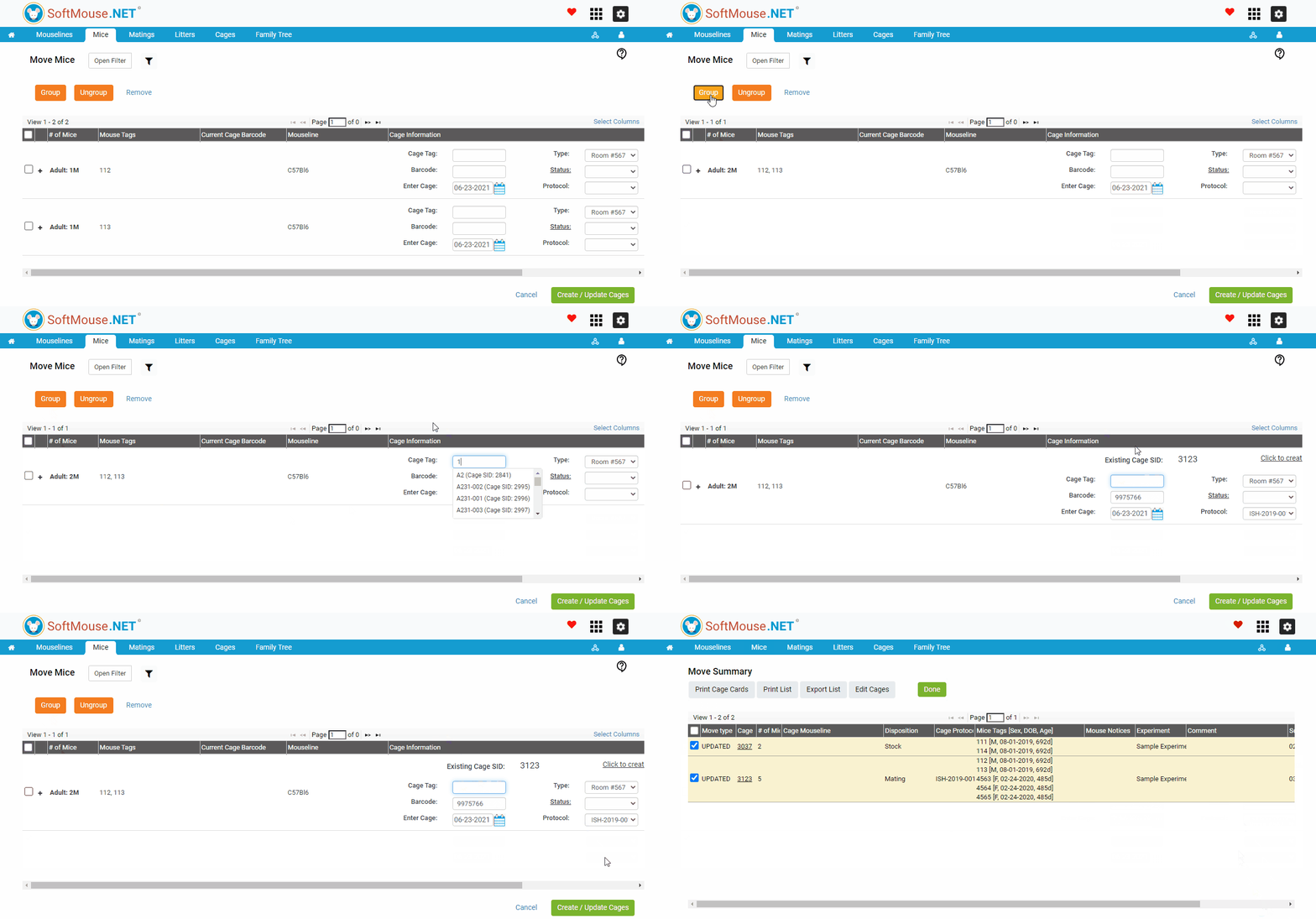
- On the Move Mice page, if you have multiple mice that should go in the same existing cage, select the mouse records and click the orange Group button.
- In the Cage Tag or Cage Barcode field, start typing in the cage number or the Cage SID you want the mice to be moved into
- Once you start typing, a drop-down list appears with all existing cages that match what you typed so far (The first number is the Cage Tag. The second is in parentheses is the SID - Sequential I.D.) - click on the desired cage number in the drop-down list
- After you click the correct Cage Tag / SID, you will see the Cage SID listed above the Cage Tag field similar to the image below. --- This SID may not mean anything specific to you, other than a confirmation that you are moving the mice into an existing cage.
- Repeat steps 1 - 3 for the next mouse / group of mice until all are grouped accordingly
- Click Create / Update Cages
The Mice will now be moved into the existing cage(s) as displayed on the Move Summary page.
If you have any further questions, please contact us with your inquiry.