
How to Create a Standing Order
There are three types of Orders that can be generated in SoftMouse.NET:
Follow these steps to create an order of animals that will arrive on more than one shipment date:
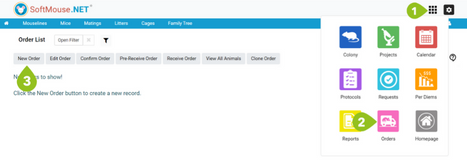
First, navigate to the Order module:
- Click the module menu at the top right of the screen
- Click the pink Order icon
- Click the New Order button
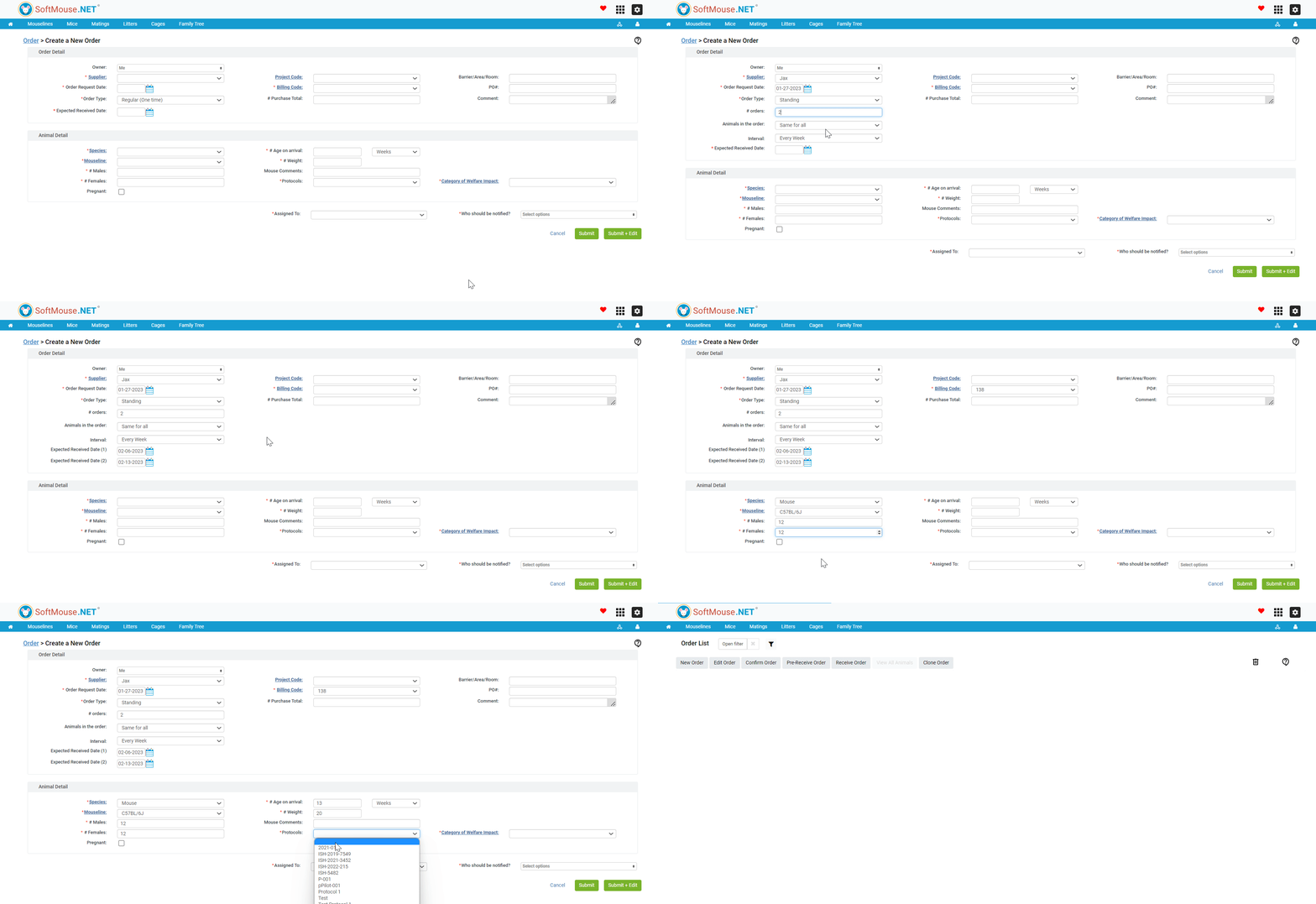
On the New Order Page, enter the Order details:
- In the Owner drop-down, select the owner of the order.
- Under the Supplier drop-down, enter the name of the Supplier you are ordering from.
- For the Order Request Date, enter the date on which you are requesting the order (e.g. today).
- Under the Order Type drop-down, Select 'Standing'
- For the '# orders' field, enter the number of order shipments you expect to receive in this order.
- In the Animals in the Order drop Down:
- If you expect to receive the same order contents with each delivery, select 'Same for all'
- If you expect to receive different order contents with each delivery, select 'Different for each Order'
- In the Interval drop-down, select the interval in which you anticipate the deliveries of your order.
- Under the Expected Received Date(s), enter the date your facility is expected to receive the deliveries.
- Enter the Billing Code
- Fill in any additional information needed
Next, in the Animal Detail window(s), follow these steps:
- Under the Species drop-down, select the Species of Animal. --- Click the word Species to enter a new species name as needed
- Under the Mouseline drop-down, enter the Mouseline of the Animal
- Enter the number of males or females you are ordering --- Only one of these two boxes is required. E.g. you can put a number of males, or a number of females, or both.
- Enter the expected age of the animals upon arrival --- The estimated birth date will be calculated from the age of the animals and the Received Date.
- Enter the anticipated weight of the ordered animals if known (eg: 15 lbs)
- Select the Protocol the animals will be assigned to
- If you will be ordering animals that will be pregnant on arrival, select the Pregnant check-box
- Fill in any additional information needed.
If you selected 'Different for each Order' in step 6 of the Order Details, repeat this process for each Animal Detail window. You can then select a user to be assigned to the Order, along with any users that should be notified of the Order’s creation.
When ready, click Submit to complete the Order or click Submit + Edit to complete the Order and move to the Edit Order Page to attach a file or add any additional notes.
If you have any further questions, please contact us with your inquiry.