
How To Print Multiple Cage Cards Per Sheet
If you will be printing your Cage Cards on regular A4 pages and need to print multiple per sheet, you can certainly set up your printer options accordingly.
After clicking Print on your browser, in your Print options, instead of selecitng your printer, you will need to first save your cards in a pdf format. Depending on the browser which you are using (and the printer you are using to print), the configuration process will differ slightly. Click the appropriate link to learn more about how to print as well as how to export your Cage Cards as PDF from different browsers:
- Configure print settings for Chrome
- Configure print settings for Firefox
- Configure print settings for Safari
Next, we will walk you through how to convert this PDF into multiple cage cards per sheet to print on Macs and PCs:
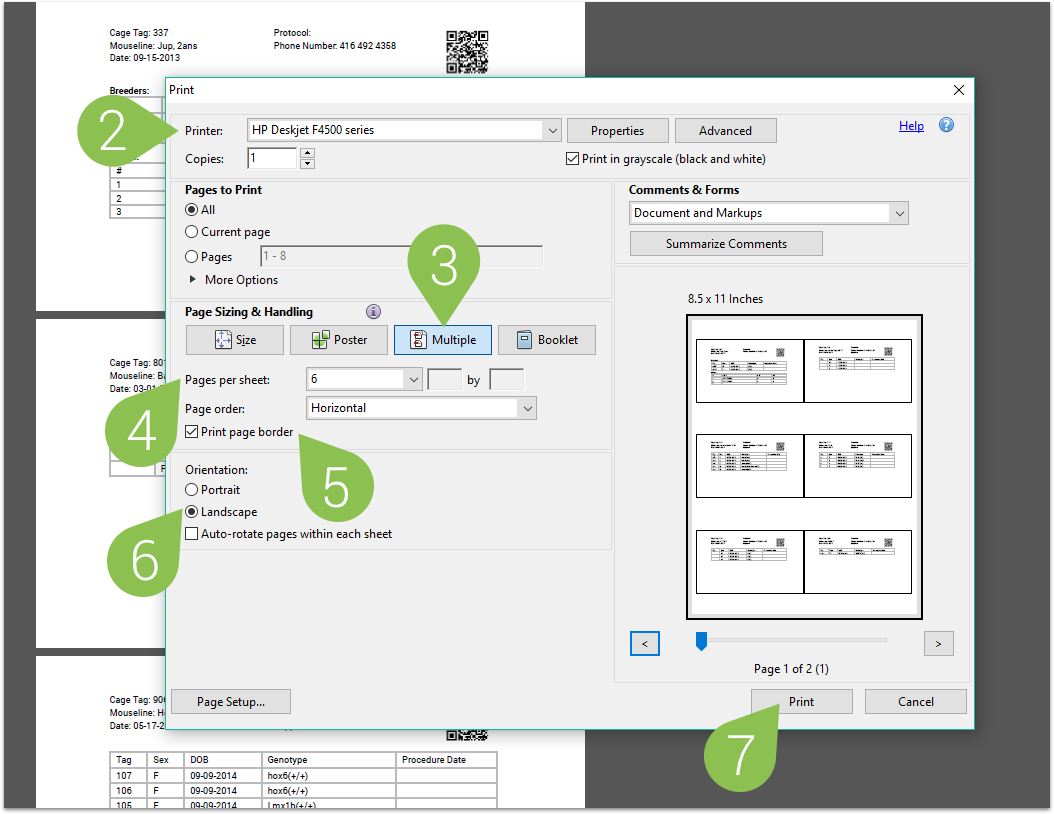
- Open the exported PDF using adobe reader and select the print icon (or hit ctrl+p)
- Select the printer from the dropdown menu
- Under page sizing and handling, select multiple
- Set up the number of cage cards you’d like to print per sheet of paper - we recommend 4 sheets per page to ensure you get the full 3 inch x 5 inch cage size
- Select print page border for easier cutting if you will be doing so manually
- Choose whichever page orientation best suites your desired cage card size - we recommend landscape to ensure you get the full 3 inch x 5 inch cage size
- Click on the ‘Print’ button
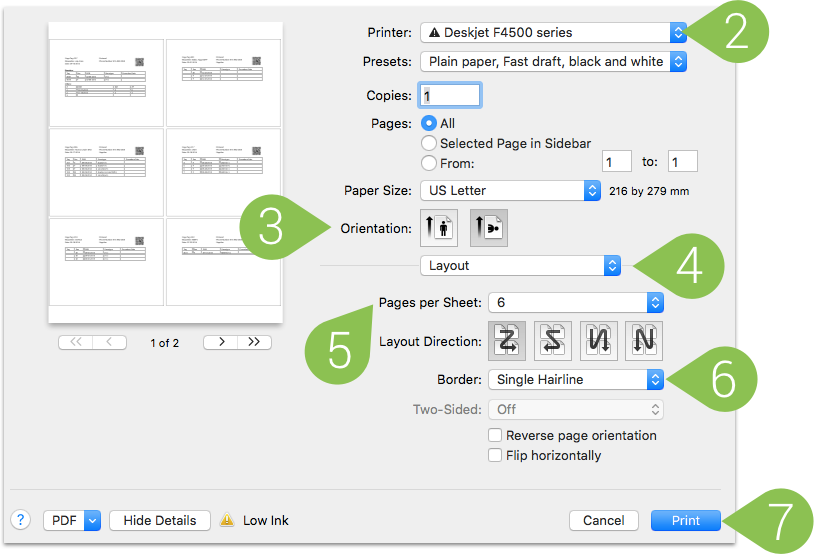
- Go to File, then select print (or hit command+p on your keyboard)
- Choose the printer from the dropdown menu
- select the page orientation
- in the dropdown below orientation, choose layout to reveal additional customization options
- select the number of pages you wish to print per sheet
- choose a border for easier cutting after printing the cage cards on a sheet
- Click on the ‘Print' button
If you have any further questions, please contact us with your inquiry.