
How to Multi-Sort Columns
This feature works as a nested sort in that you can sort by one column then click the header of a second column, which will be sorted within the existing sort of the first column. For example, you can sort by DOB within a sorted Mouseline.
There are a few important considerations to keep in mind:
How to activate Multiple Sort:
- From the Homepage, click on the Preferences menu.
- Click on the General Preferences tab
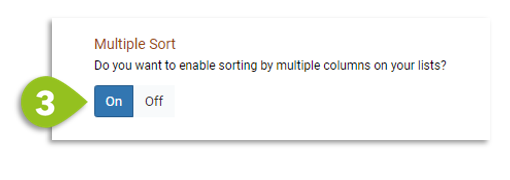
- Scroll to the bottom of the page and set the Multiple Sort toggle to On.
- Click Save.
How to use the Multiple Sort:
- On any list: click the grey header of two or more columns to initiate the sort.
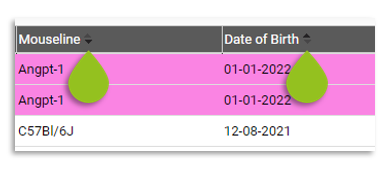
- You will see two arrows appear in the headers of the sorted columns. (See image below)
- The sorted column closest to the left of the list table will be the "primary" sort. This means that any clicked columns that follow to the right will be nest sorted within that first sort.
- You can Change the Primary Sort Order simply by dragging, dropping, and saving the desired primary sort column to the left on the list table.
- To sort and unsort a column:
- One click of a column header will sort it ascendingly.
- Two clicks of the same column header will reverse and sort descendingly.
- Three clicks of the same column header removes the sort completely and will remove the two arrows within the column header.
If you have any further questions, please contact us with your inquiry.